
Install plugins
Plugins add commands and features to Paper, Purpur and Leaf servers, for example land claims, ranks or minigames. They don’t need to be installed by players.
If your server runs Fabric, Forge or NeoForge, it uses mods instead of plugins and the page is called Mods. See install mods and modpacks.
Install a plugin from the panel
Section titled “Install a plugin from the panel”- Open your server and click Plugins.
- On Browse, search for a plugin or pick one from the list. Use Categories and the sort menu to narrow it down.
- Check the Minecraft version selector at the top. It starts on your server’s version, so the list only shows plugins that support it.
- Click Install. To pick an older release, open the plugin and choose a Version to install first.
- When the bar says Changes won’t take effect until the server restarts, click Restart now.
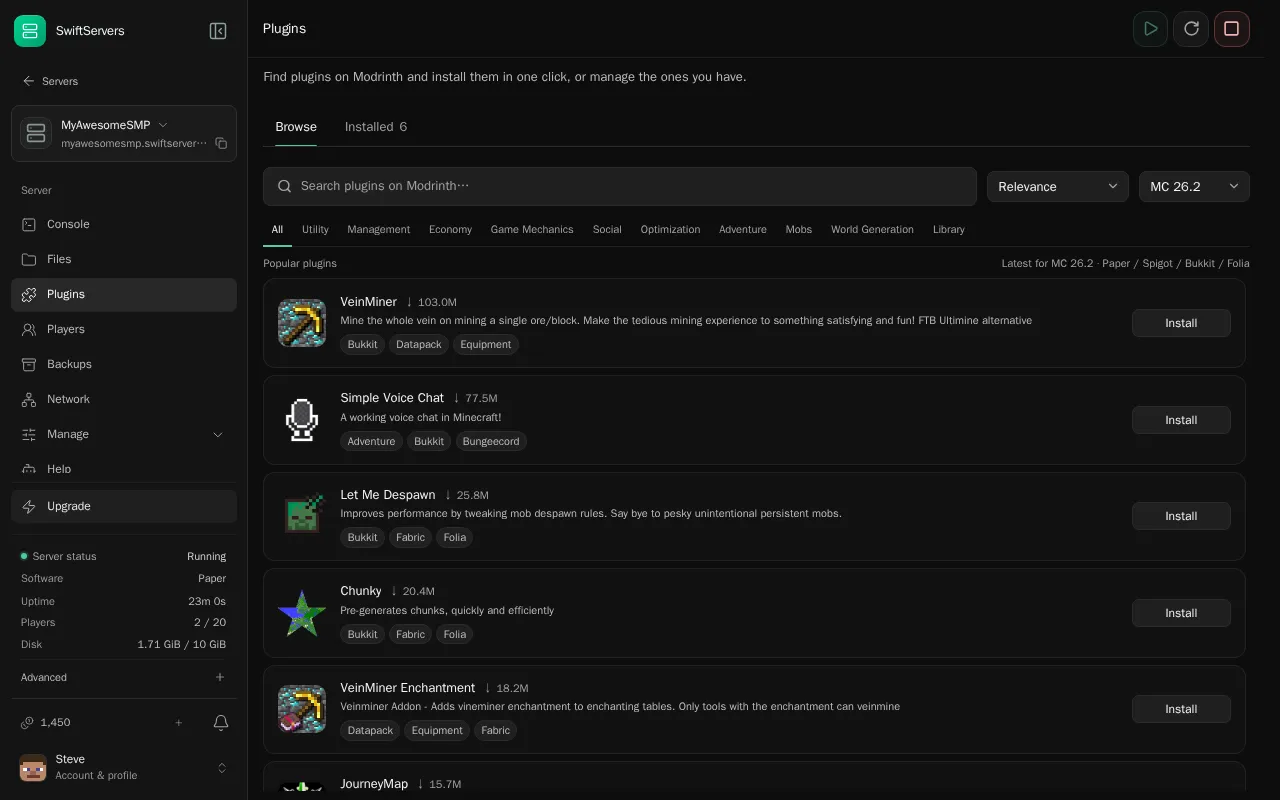
The panel downloads the plugin into the plugins folder, along with any plugins it depends on. After the restart, run plugins in the console to check that it loaded. Its name shows in green when it works.
Most plugins create a folder of their own under plugins with a config.yml. Edit it in Files, then restart.
Update or remove plugins
Section titled “Update or remove plugins”Open the Installed tab. It lists every plugin in the plugins folder.
- Update appears when Modrinth has a newer release for your version.
- Remove deletes the plugin’s JAR file. Its config folder stays, so you can delete that in Files if you don’t need it.
Restart the server after either change.
Install a plugin from somewhere else
Section titled “Install a plugin from somewhere else”Plugins that aren’t on Modrinth, such as many on SpigotMC, can be uploaded by hand:
- Download the plugin’s
.jarfile. Make sure it supports your server’s Minecraft version. - In Files, open the
pluginsfolder and upload the file. - Restart the server.
ViaVersion is managed for you
Section titled “ViaVersion is managed for you”Before every start, the panel adds or updates ViaVersion and ViaBackwards in your plugins folder. They let players on newer and older game versions join your server.
To manage ViaVersion yourself, for example to add ViaRewind, open the Installed tab and turn off Keep ViaVersion installed and updated. The panel then leaves those files alone. The setting applies from the next start.
A plugin broke the server
Section titled “A plugin broke the server”If the server stops starting after you add a plugin, remove that plugin’s JAR from plugins and start again. The Why did it stop? card on the console usually names the plugin and can remove it for you.