
Name, MOTD and server icon
These settings are on the server’s Settings page, under Manage.
Rename the server
Section titled “Rename the server”On the General tab, change Server name and save. The name shows in the panel and in the lobby.
Description on the same tab is a note for you and the people you share the server with. Players don’t see it.
Change what players see in their server list
Section titled “Change what players see in their server list”The Minecraft server list card on the Appearance tab sets what players see in their multiplayer list. The preview shows how it will look.
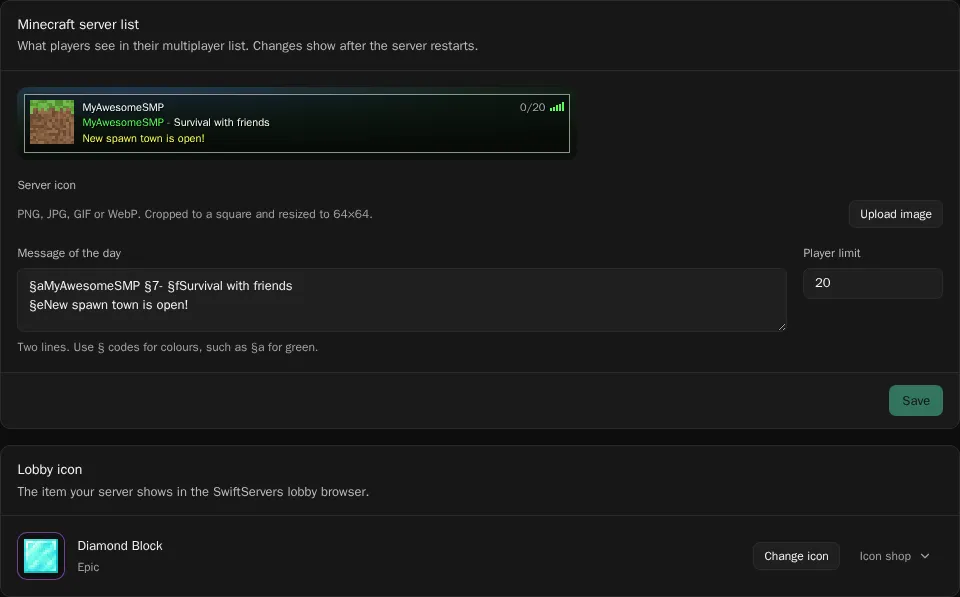
- Open Settings, then the Appearance tab.
- Click Upload image to set the server icon. Any PNG, JPG, GIF or WebP works. The panel crops and scales it to the 64×64 pixels Minecraft needs.
- Edit the Message of the day. It has two lines. Use § codes for colours, such as
§afor green or§lfor bold. - Set the Player limit, the most players online at once.
- Click Save.
- Restart the server. Minecraft only reads these when it starts.
To go back to the default icon, click Remove and restart.
Some common colour codes:
| Code | Result | Code | Result |
|---|---|---|---|
§a |
green | §c |
red |
§b |
aqua | §e |
yellow |
§6 |
gold | §f |
white |
§l |
bold | §o |
italic |
§n |
underline | §r |
reset |
Pick a lobby icon
Section titled “Pick a lobby icon”The lobby icon is the item your server shows in the lobby’s server browser. It’s separate from the server icon above.
- On the Appearance tab, find Lobby icon.
- Click Change icon and pick one you own. It saves straight away.
To get more icons, buy them in the Icon shop with credits. Servers without a bought icon show an oak sign.
Only the server owner, and subusers with permission, can change these settings.