
Use the console
The Console is the page a server opens on. It shows the server’s live log, takes commands, and has the power buttons. Above the log you see the uptime, players online and disk use. Click Advanced for memory, CPU and network.
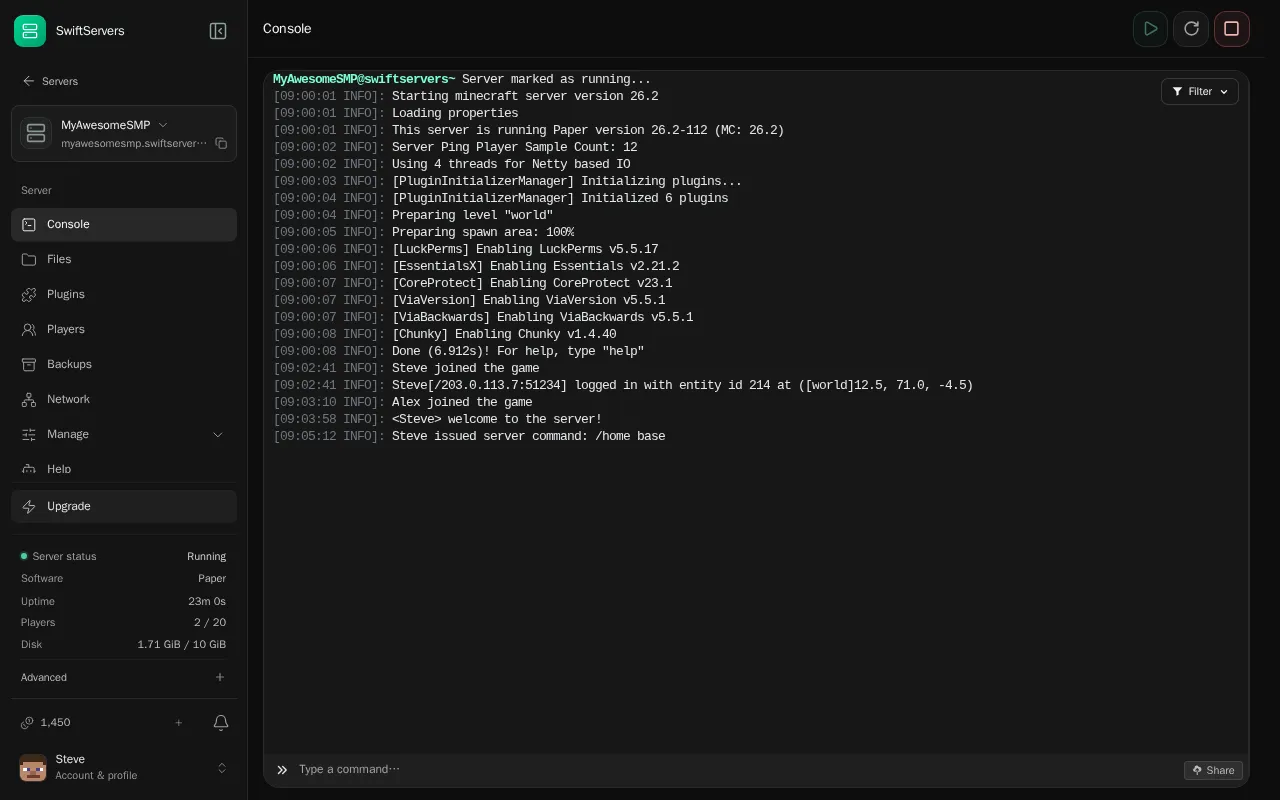
Send a command
Section titled “Send a command”Type in the box under the log and press Enter. Leave out the slash: say Hello works, and so does op Steve. Press the up arrow to bring back earlier commands. On a phone, touch and hold the box to paste.
Find something in the log
Section titled “Find something in the log”Click Filter to search the log or to show only Warnings or Errors. Click a line in the results to copy it.
When the server logs errors, an Errors detected in the log notice appears. Click Inspect errors to list them with what they mean and what to do.
Get an error explained
Section titled “Get an error explained”Errors in the log are grouped with their stack trace into one block. Click anywhere in an error block to select it. A panel opens under the console with these options:
- Copy copies the whole error.
- Ask AI explains the error in plain words, says how serious it is, and lists the steps to fix it.
- Ask Byte to fix it opens Byte with the error ready to send. Byte can read your files and make the fix with your approval.
When the server stops on its own
Section titled “When the server stops on its own”If the server crashes or stops while people are playing, the console shows a Why did it stop? card. It reads the log, explains the cause, and often offers one fix, such as removing a plugin that broke the start. Click Fix it to apply the fix. Every fix has an Undo. See my server won’t start or keeps crashing.
Share your log
Section titled “Share your log”To show someone your log, click Share. The panel uploads the log to mclo.gs and copies the link. mclo.gs hides IP addresses in shared logs. Paste the link in your support ticket instead of a screenshot.
Use the console while editing files
Section titled “Use the console while editing files”When you edit a file in Files, click Show console to open the console next to the editor. You can restart the server and watch the log without leaving the file.