
Manage files and use SFTP
Open your server and click Files. The folder tree is on the left. Click a file to open it in the editor.
Edit a file
Section titled “Edit a file”Click a file to open it in a tab. Change it, then click Save or press Ctrl+S. Most config changes need a restart before the server uses them.
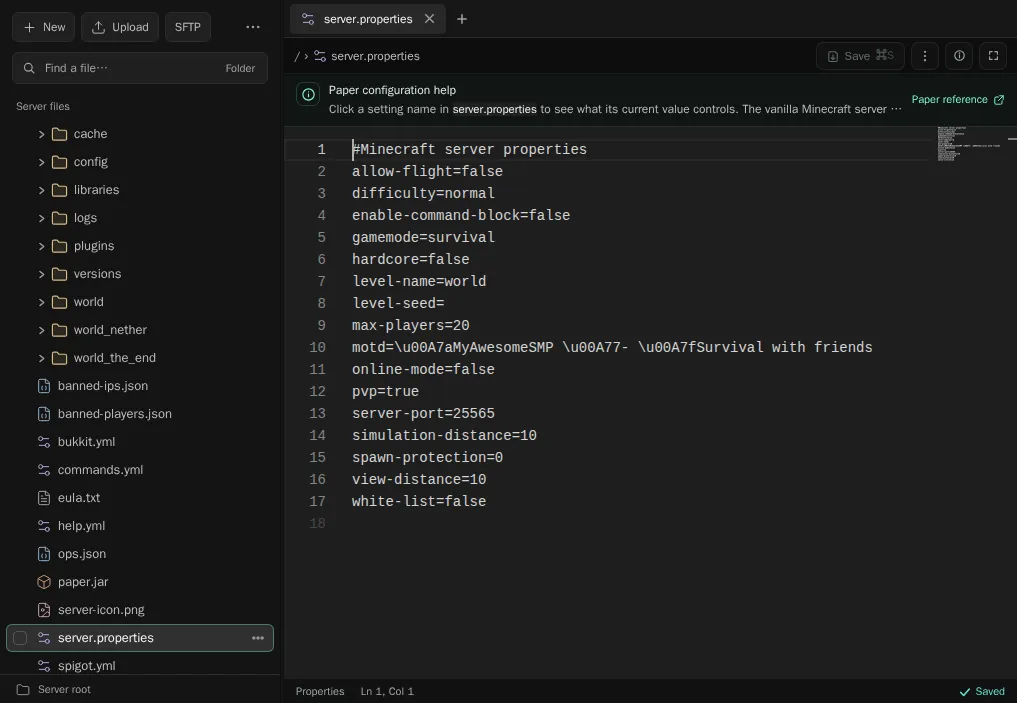
- History lists a snapshot of the file each time you save it, for 7 days. Click a snapshot to compare it with the current file, and Restore to go back to it.
- Show console opens the console next to the editor, so you can restart and watch the log without leaving the file.
- In Paper’s config files, click a setting name to see what it does in the Paper reference.
- Files that end in
.dat, such aslevel.datand player data, open in an NBT editor. Stop the server before you save world data, or Minecraft can overwrite your change.
Upload files
Section titled “Upload files”Open the folder you want the files in, then drag files or whole folders onto the page, or click Upload. Uploads keep their folder structure.
To upload a ZIP and unpack it, upload it, open its menu, and click Unarchive.
To put a file from the internet straight onto the server, open the Upload menu and click Download from link. Paste the file’s URL and pick the folder.
For big uploads, such as a large world or a modpack, use SFTP instead. Most SFTP apps can pick up an upload where it stopped if your connection drops.
Create, move and delete
Section titled “Create, move and delete”- New creates a file or a folder in the current folder.
- Each file’s menu has Move, Copy, Archive, Download, Permissions and Move to Recycle Bin. Select several files to act on all of them.
- Find files searches the current folder. Click the search mode to search the whole server.
- Files whose names start with a dot are hidden by default. To see them, open the ⋯ menu next to SFTP and click Show hidden files.
Get deleted files back
Section titled “Get deleted files back”Deleted files go to the Recycle bin and stay there for 1 day. To get one back, open the ⋯ menu next to SFTP, click Recycle bin, and restore what you need. After a day they are gone for good, so make a backup before big clean-ups.
Connect with SFTP
Section titled “Connect with SFTP”SFTP lets an app like FileZilla or WinSCP copy files to and from your server.
- On the Files page, click SFTP.
- The dialog shows the Host, Port, Username and Password. Click Copy all details, or Open in SFTP app if you have WinSCP or Cyberduck.
- In FileZilla, set the protocol to SFTP and enter the details. The dialog links step-by-step guides for FileZilla, WinSCP and Cyberduck.
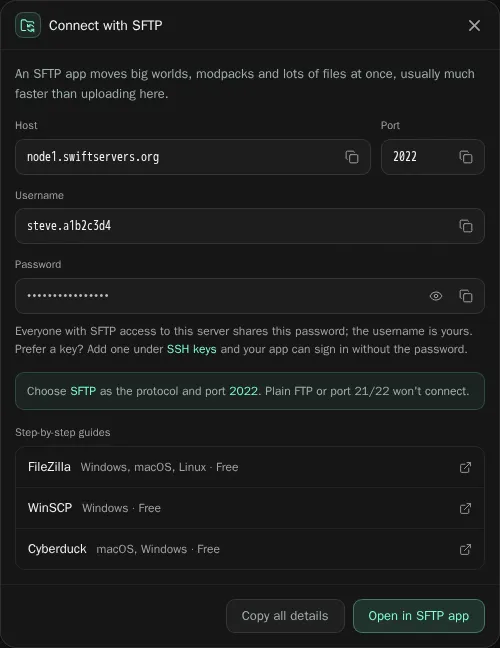
The username is yours alone. It has your panel username and the server ID in it. The password belongs to the server and is the same for everyone with file access, so keep it private.
Use SFTP, not FTP. Plain FTP doesn’t work.