
Lobby listing and start page
These settings are on the server’s Settings page, under Manage, on the Visibility tab.
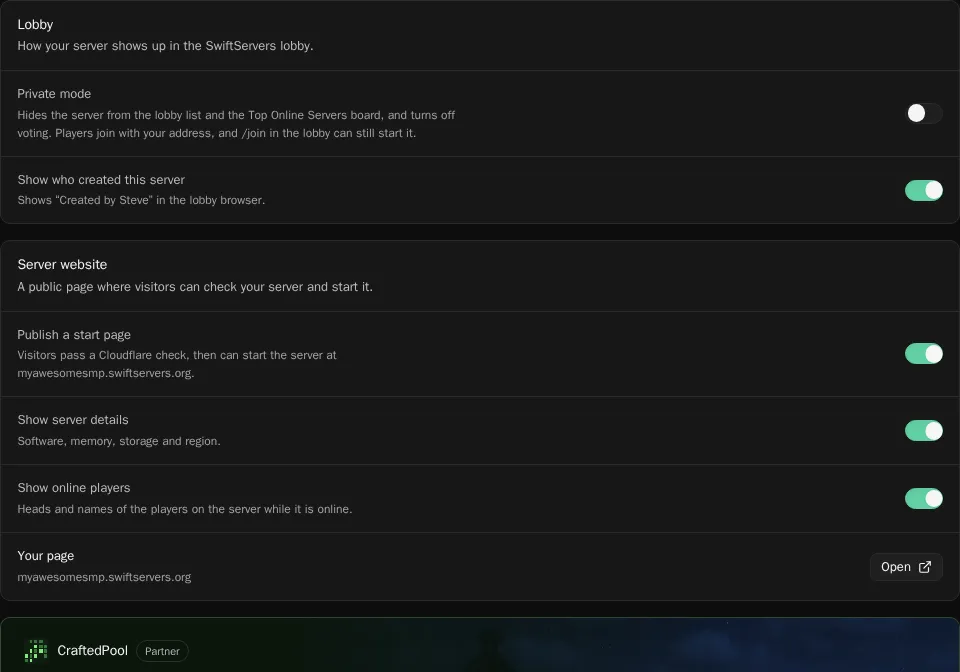
Show or hide the server in the lobby
Section titled “Show or hide the server in the lobby”Public servers are listed in the lobby browser and can climb the Top Online Servers board, where new players find them.
Turn on Private mode to keep the server out of the lobby:
- It no longer shows in the lobby list or on the Top Online Servers board.
- Voting for it is turned off.
- Players can still join with your address, and
/join <name>in the lobby still starts it.
Private mode doesn’t stop anyone with the address from joining. Use the whitelist for that.
Show who created this server puts your Minecraft name on the server in the lobby. It only shows once you’ve linked your Minecraft account.
Publish a start page
Section titled “Publish a start page”A start page is a public web page for your server at https://<name>.swiftservers.org. Visitors see whether the server is online and can start it with one click, without a panel account. Share it with players who want to wake the server before they open Minecraft.
- Under Server website, turn on Publish a start page.
- Choose what it shows:
- Show server details shows the software, memory, storage and region.
- Show online players shows the heads and names of the players on the server while it’s online.
- Open the address under Your page to see it.
Turn Publish a start page off to take the page down.