
Back up and restore
A backup is a copy of every file on the server. Make one before you update plugins, change the version or replace a world, so you can go back if something breaks.
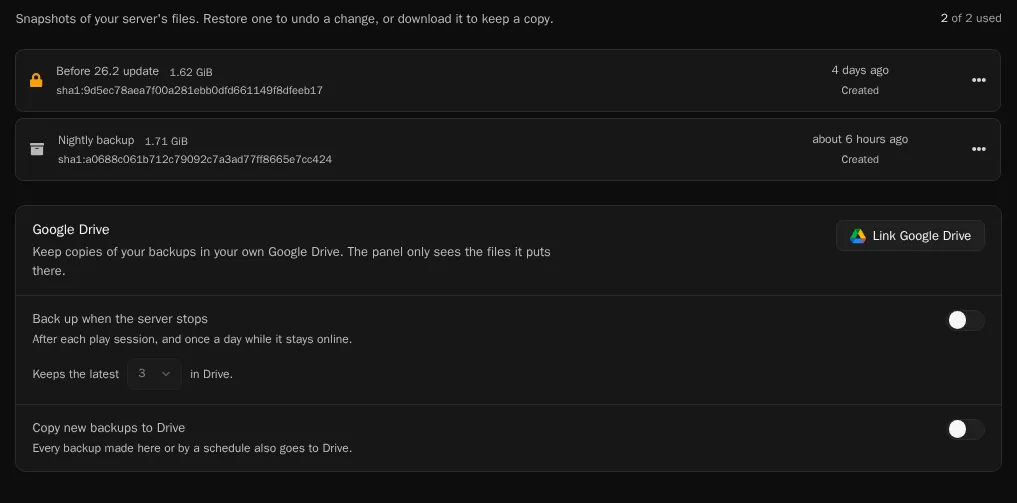
Each server stores up to 2 backups in the panel. Open your server and click Backups to see them.
Make a backup
Section titled “Make a backup”- Click Create backup.
- Optional: give it a Backup name you’ll recognise later, like “before 26.3 update”.
- Optional: list paths to leave out under Ignored files, one per line. Leave it empty to use the
.pteroignorefile in the server’s main folder. - Optional: turn on Locked so the backup can’t be deleted until you unlock it.
- Click Start backup.
The backup runs in the background. Large servers can take a few minutes.
When both slots are full, delete an old backup before making a new one. A scheduled backup replaces the oldest unlocked backup by itself.
Restore a backup
Section titled “Restore a backup”- Stop the server.
- Open the backup’s menu and click Restore.
- Choose whether to Delete all files before restoring. Turn it on to get the server back exactly as it was. Leave it off to put the backup’s files over the current ones and keep files the backup doesn’t have.
- Confirm, then start the server when the restore finishes.
Download a backup
Section titled “Download a backup”Open the backup’s menu and click Download. You get the whole server as an archive, which you can keep on your computer.
Back up on a schedule
Section titled “Back up on a schedule”Create a schedule with a Create a backup task, for example every night at 4:00. When both slots are full, each new scheduled backup replaces the oldest unlocked one.
Keep backups in Google Drive
Section titled “Keep backups in Google Drive”You can link your Google Drive and keep more backups there. The panel can only see the files it puts in your Drive, nothing else.
- On the Backups page, under Google Drive, click Link Google Drive and sign in to Google.
- Pick what goes to Drive:
- Back up when the server stops makes a backup after each play session, and once a day while the server stays online. Choose how many of these to keep in Drive.
- Copy new backups to Drive copies every backup you or a schedule makes.
- To copy a backup you already have, open its menu and click Copy to Google Drive.
Backups in Drive go to a folder called SwiftServers backups, with a folder for each server. They don’t use the server’s 2 backup slots. To restore one, find it under In Google Drive on the Backups page and click Restore.
If you unlink Google Drive, automatic copies stop. The files already in your Drive stay there, also after you delete the server.