
Create your first server
In this guide you create a free Paper server, let it install, and join it from Minecraft. It takes about five minutes, most of it waiting for the install.
You need a SwiftServers account. Sign in or sign up at panel.swiftservers.org. The free plan doesn’t need a card.
Open the create page
Section titled “Open the create page”On the dashboard, click Create server. The create page walks you through one step at a time, and the summary shows what you’ve picked so far.
Create the server
Section titled “Create the server”-
Name your server. The name is also the server’s address. Type a name and the panel shows the address players will use, for example
myawesomesmp.swiftservers.org. Use 3 to 16 letters, numbers, dashes or underscores. If a name is taken, pick one of the ideas under it. Click Continue →.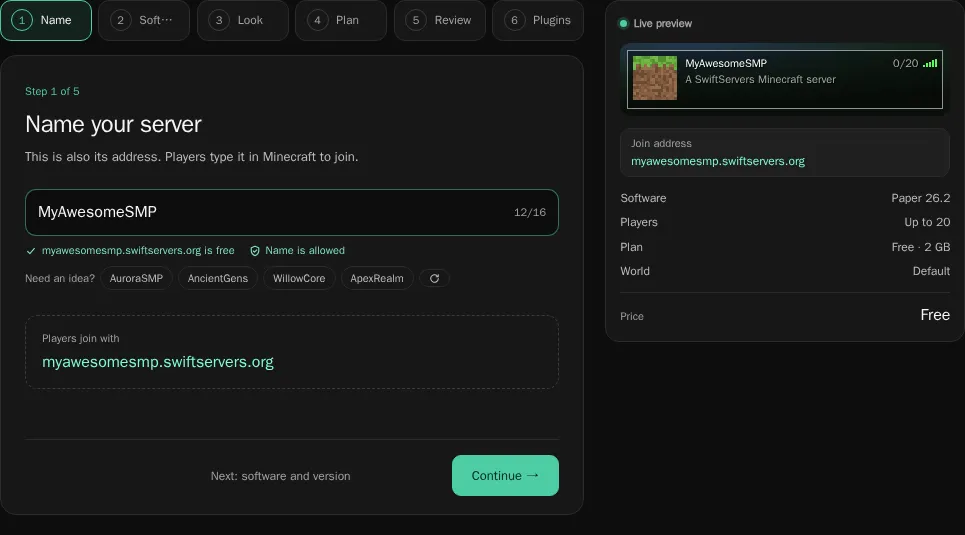
-
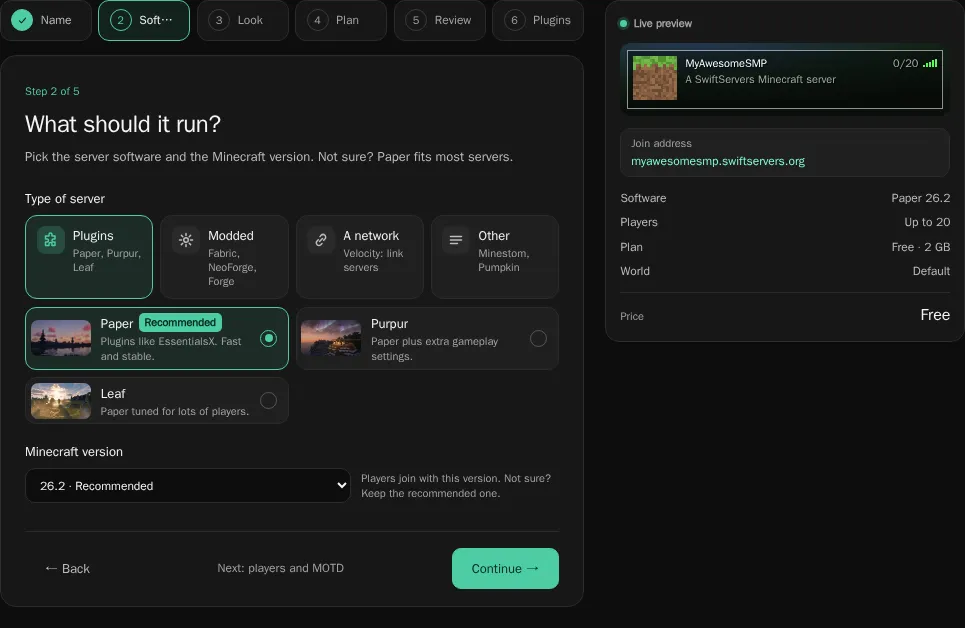
Pick what it runs. Choose a type of server, then the software:
- Plugins runs Paper, Purpur or Leaf. Pick this for a survival server, an SMP or minigames. Paper fits most servers.
- Modded runs Fabric, Forge, NeoForge or Arclight. Pick this for mods or a modpack. Click Start from a modpack to install a whole Modrinth modpack.
- A network creates a Velocity proxy that links your servers. See Velocity networks.
- Other runs Minestom or the experimental Pumpkin server, for custom development.
Then choose the Minecraft version. The version marked Recommended is the safest choice. Players must use a version the server accepts, so pick the one your friends play. Click Continue →.
-
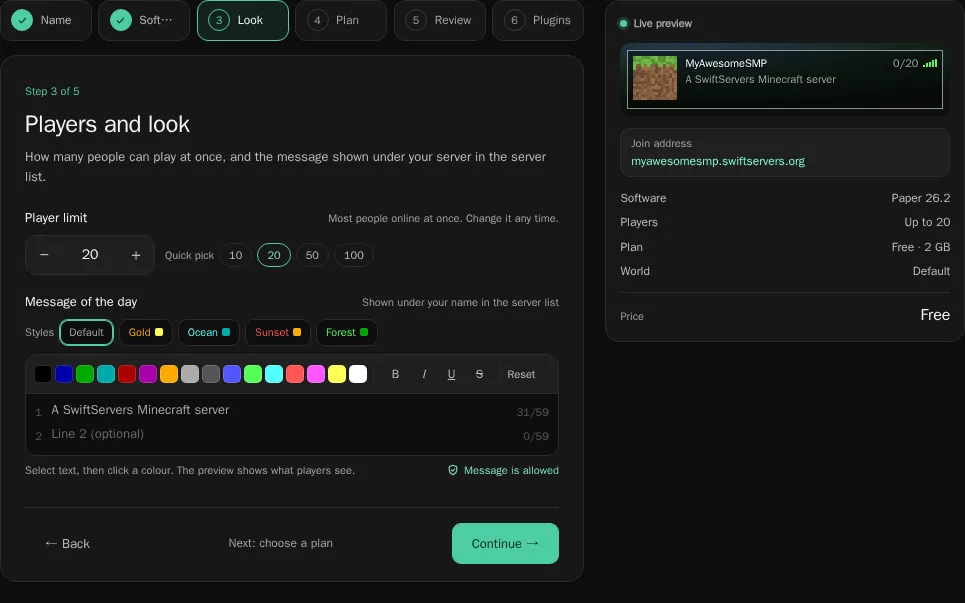
Set the player limit and message. Pick how many players can be online at once. Under Message of the day, write the lines players see under your server’s name in their server list. Pick one of the styles, or select text and click a colour. The live preview shows what players see. You can change both later. Click Continue →.
-
Choose a plan. Free is already selected. A paid plan gives the server more memory and storage, and Keep it online 24/7 stops it from sleeping when it’s empty. You can upgrade any time later, so stay on Free if you aren’t sure. See plans. Click Continue →.
-
Check and create. Look over the summary and click Edit on anything you want to change. To change the world, click Customise world. You can set the world name, seed, world type, difficulty, game mode, structures and hardcore mode, or leave the defaults. If your Minecraft account is linked, leave Make … an operator on to get every command in game. Click Create server →.
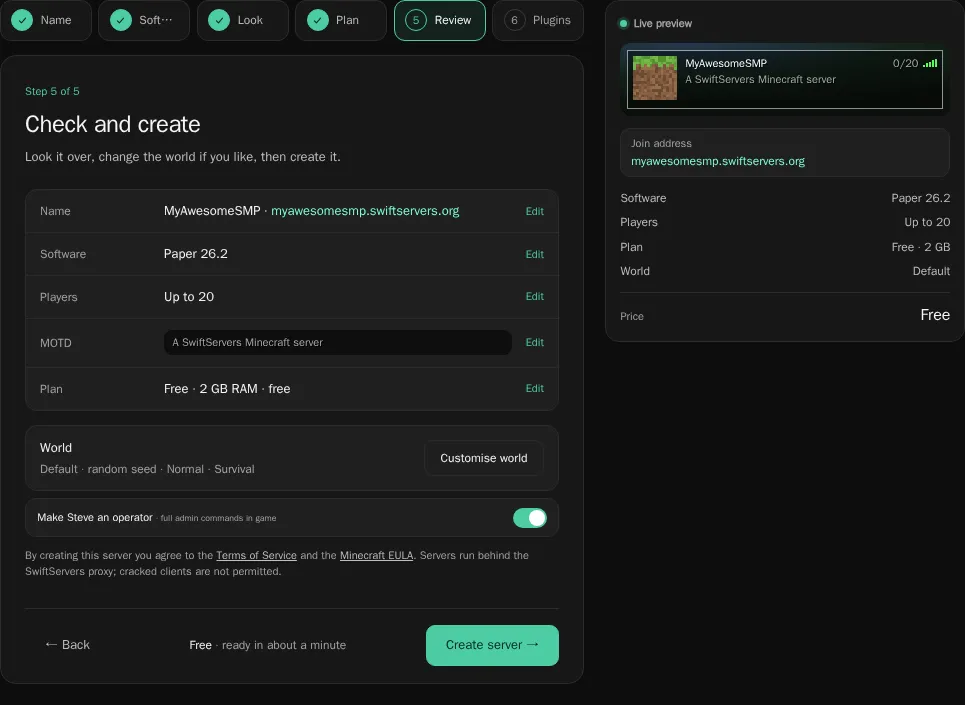
Creating a server means you agree to the SwiftServers Terms of Service and the Minecraft EULA. If you picked a paid plan, the Whop checkout opens next. The server runs on the free plan until the payment goes through.
Wait for the install
Section titled “Wait for the install”The page now shows Installing… and the server’s address. The panel downloads the server software and sets everything up, then starts the server by itself. You can leave the page. The install keeps going.
While it installs, you can pick plugins or mods to add. They go in before the first start, so the server never needs an extra restart for them. You can also click ✦ Set up with AI and tell the assistant what you want, for example “a survival server with land claims and an economy”.
When the badge changes to Ready, click Open server → to see the console.
Join the server
Section titled “Join the server”- Open Minecraft on the version you picked.
- Click Multiplayer, then Add Server.
- Paste the address from the panel, for example
myawesomesmp.swiftservers.org. Leave out the port. - Click Done, then join.
You’re on your own server. Send the address to your friends.
Next steps
Section titled “Next steps”- Join from Bedrock, or through the lobby
- Install plugins
- Link your Minecraft account to manage your servers from the lobby